
NORDIPTVHD device guidance
Prepare your player.
Bring your screen to life.
Set up a compatible IPTV player on Smart TV, Android, iOS or computer. Follow the steps for your device and check the connection before you start watching.
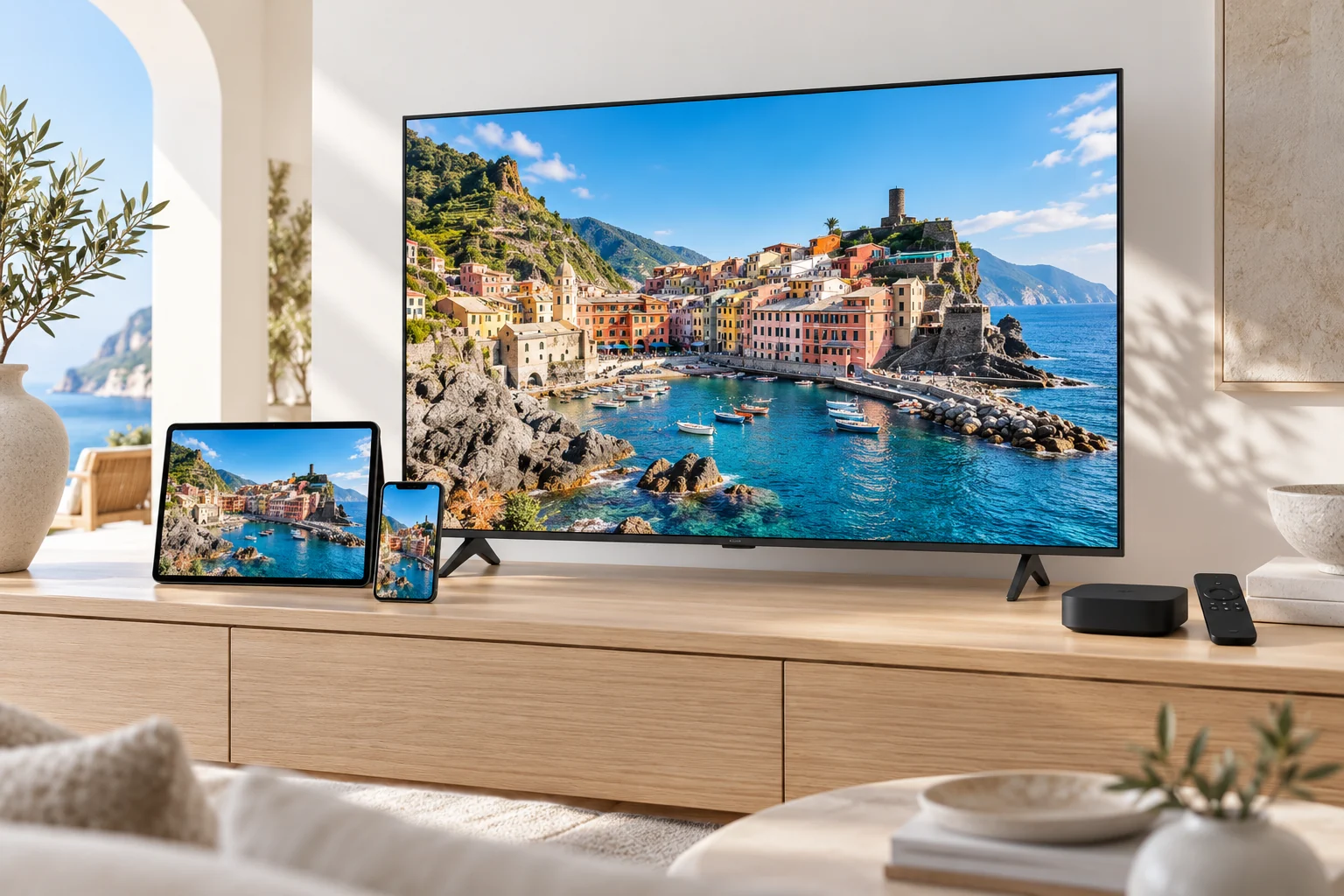
Set up your Smart TV
- Check your television
Find the model and operating system in the TV settings. The available players vary by manufacturer and app store. - Install a compatible player
Use the official app store on your television. Check whether the player requires its own licence. - Add your subscription
Enter the subscription details exactly as supplied. Do not post them in public or send them in a support form. - Test and organise
Open a stream, check sound and picture, then organise your favourites. For a steadier connection, consider Ethernet.
Set up your Android
- Open your device app store
Use the official app store on your phone, tablet or Android TV device. - Choose a compatible player
Check the player requirements and use a version suitable for your screen and remote. - Enter your subscription details
Use the account or playlist method supplied with your subscription. Keep the details private. - Start playback
Test a stream and adjust the player settings if needed. Keep both the player and device software up to date.
Set up your iOS
- Check your device
Confirm your iPhone or iPad operating system is supported by the player you choose. - Install through the App Store
Review the player description and any separate app charges before installation. - Configure your subscription
Enter the details provided with your subscription using the supported login or playlist option. - Test your connection
Use a stable Wi-Fi connection to begin. Mobile data use depends on playback quality and viewing time.
Set up your Computer
- Choose a player
Select a reputable desktop player compatible with your operating system and subscription format. - Install from the official source
Follow the developer installation instructions and avoid untrusted downloads. - Add the supplied details
Open the account or network playlist settings and enter your subscription details. - Check audio and video
Try a stream, select the right audio output and use a stable connection. Contact support if an issue persists.

A little guidance goes a long way.
Tell us your device and what you would like to watch.
A smoother first start
Before you sign in.
Have your device model, player name and subscription instructions ready. Check whether your app needs a separate licence. Use a stable connection and keep account details private.
What should I do if playback buffers?
First restart your player and check whether other internet services work normally. Where possible, use Ethernet or a strong Wi-Fi connection near your router. Try another stream, then contact support with your device, player and the time the issue occurred.
Is a player app included in the subscription?
Some player apps are free and others require a separate licence. Check the app store information and confirm which player works with your device before buying an app.
Do I need to send you my password?
No. For a support enquiry, share your device model, player name and a description of the issue. Do not include payment details or passwords in a contact message.

Check the local network
A weak Wi-Fi signal can interrupt playback even when your internet plan is fast. Move closer to the router or try Ethernet if your device supports it.

Copy details carefully
Use the format supplied with your subscription. Check the full server address and remove accidental spaces when copying account or playlist details.

Keep the player up to date
Use the device official app store or the player official download source. Keep a note of the app name and version so you can describe your setup clearly.
If playback does not start
Check whether the problem is local.
Open another internet service on the same device. If that is also slow or unavailable, investigate your connection before changing subscription details. If possible, compare Wi-Fi with Ethernet.
Compare one stream with another.
An issue affecting a single stream can have a different cause from a player that cannot load any content. Try a second item and note whether the problem affects live television, on-demand content or both.
Check the active connection allowance.
If another device is already playing, your subscription may have reached its connection limit. Stop other playback and check the package allowance. Reinstalling the app does not increase that allowance.
Collect useful information.
Write down your device model, app name, any visible error and the time of the issue. If you share a screenshot, hide login details and private account information first.
Need to choose a player first?
Your app should match the device and access format.