
Nord IPTV HD journal
Prepare Your Smart TV for IPTV: Device, Player and Connection Checks
October 19, 2026
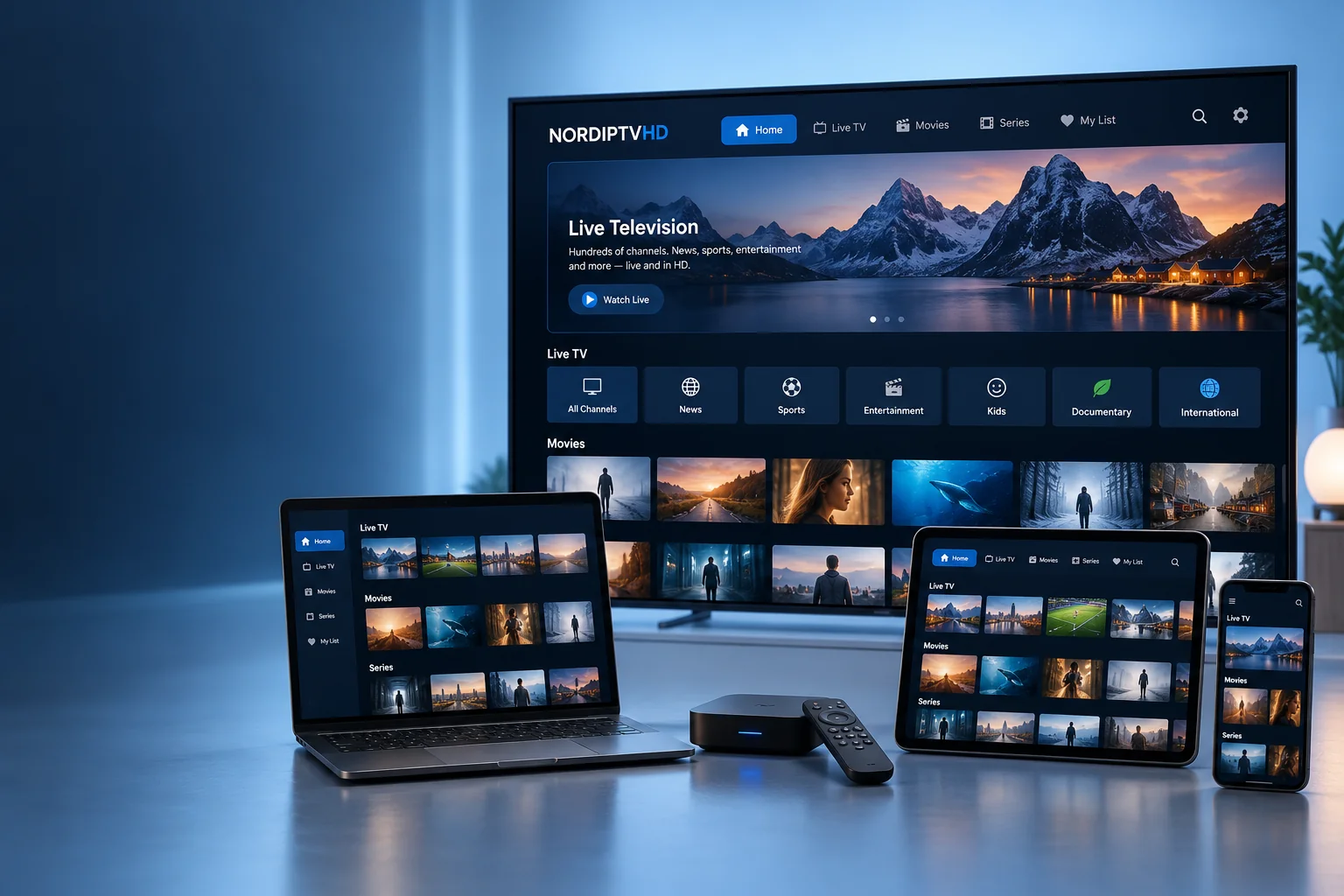
A smoother television setup starts before you enter an account or playlist. Your exact TV model, the application you choose and the connection in your viewing room all affect the process. Use this guide to organise the details you need before asking for activation help.
Find the model and operating system
Open your television’s settings and note the model number and installed software version. Menu names differ by manufacturer. A brand name on its own is not enough to identify every supported application or access method.
If you use a streaming box or stick, record its model separately. Your television may simply be displaying the picture while the external device runs the player.
Choose an application for that device
Start with the official app store available on your TV or streaming device. Confirm the application publisher, accepted account or playlist formats, and any separate licence charge before paying for an app. An application and a content subscription are separate products.
Compare the questions in our IPTV app guide. If you are unsure, share your device model and the player you are considering with support.
Check the connection where you watch
A network test beside your router does not necessarily describe the connection at your television. Check reception in the viewing room. Where supported, an Ethernet test can help distinguish a wireless issue from a problem elsewhere in the setup.
If playback behaves differently on another device, note whether both devices use the same network and player. Avoid changing many settings at once: one change followed by a test is easier to understand.
Enter access details privately
Use the format and details supplied for your subscription. Watch for accidental spaces or spelling differences. Do not post account information in public comments or send passwords through a general contact form. When asking for help, describe the issue and your device first.
Test picture and sound
Try several available streams rather than judging the entire setup from one programme. Check sound output, full-screen display and the original picture proportions. Audio tracks, subtitles and resolution vary by content and player; your screen cannot add options that the source does not provide.
Keep a small setup record
- Television or streaming-device model.
- Player name and version.
- Wired or wireless connection.
- Your subscription category and end date.
- A short description and timing of any issue.
For device-specific preparation, read our setup guide. To check a package before ordering, visit Pricing or contact NORDIPTVHD.