
Nord IPTV HD journal
IPTV Picture, Audio and Subtitles: Make Your Player Easier to Use
October 19, 2026
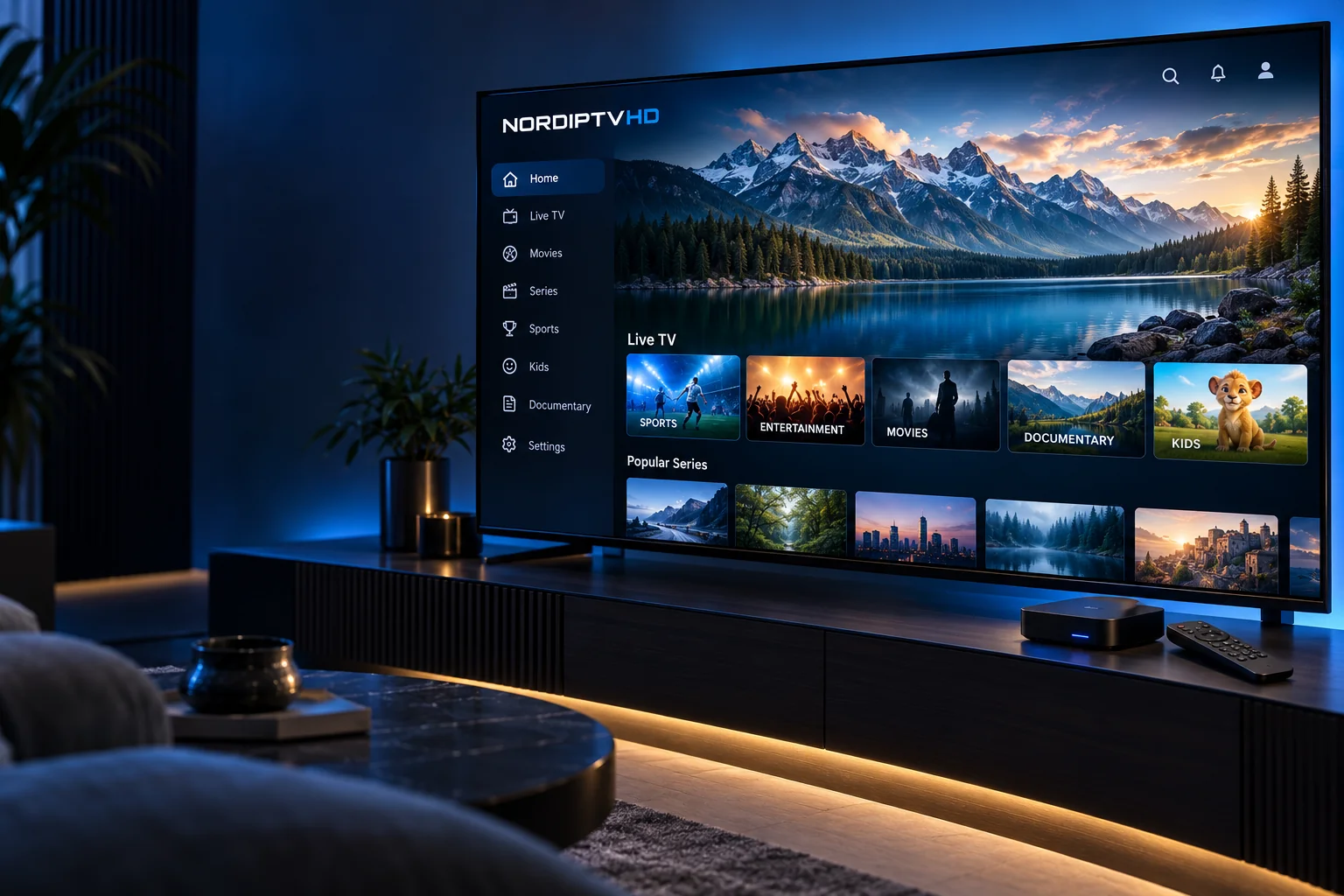
The same television can feel different with a few well-chosen player settings. Picture proportions, audio output and subtitle preferences can make viewing more comfortable. The key is to distinguish the options supplied by a programme from the controls offered by your application and device.
Keep the picture in proportion
If faces look stretched or picture edges are missing, check your player’s aspect-ratio or fit-to-screen setting. Begin with the original proportions where that option is available. Your television may also have its own picture-size setting, so note which control you change before testing again.
Some programmes naturally have bars around the picture because their proportions differ from your screen. Filling every edge can crop or distort the image. Choose the presentation that preserves the programme comfortably on your display.
Check the available audio tracks
Open the player’s audio menu to see whether the current stream includes alternative soundtracks. A category labelled with a country does not guarantee that every film or channel has that country’s language. If a language is essential, confirm it for the content you want before subscribing.
Also check the device’s selected sound output. When using a soundbar, receiver or headphones, compare the connection and volume controls before assuming the stream has no sound.
Choose subtitles when supplied
Subtitle availability varies by channel, film, episode and source. When subtitles are present, your player may allow language selection or text adjustments. Size, colour and contrast controls depend on the application; not every player offers the same choices.
If you depend on subtitles, describe the language and type of content you need in your enquiry. A general feature name does not confirm accessibility options for every programme.
Organise the categories you use
Where the player supports favourites, save a short list of your regular channels or programmes. This can reduce the time spent moving through large category menus. Choose names and groups that make sense to your household rather than adding everything at once.
Describe a settings issue clearly
When asking for help, provide the application name, device model and what you see or hear. Explain whether the issue affects one programme or several and whether it began after a setting changed. Keep your account credentials private.
Prepare your next viewing session
- Use a picture setting that preserves the original proportions.
- Check the audio tracks provided by the selected programme.
- Choose supported subtitles and comfortable text settings.
- Keep a useful favourites list where the application permits it.
Explore viewing features, compare player considerations or ask NORDIPTVHD about a specific requirement.